- Blog
- Appointment Scheduling
- Latest changes
- Plan courses and workshops
- What does fragab mean?
- Read poll results
- Create a scheduling poll
- Help
- Poll Types
Create a scheduling poll: find a date that works for your group
When is everyone free? For a games night, club meeting or team catch-up, a scheduling poll puts possible dates and times side by side. Your group marks the options that work for them.
Prepare your scheduling poll
- Add a title and description: use a clear question such as “When shall we play again?”. Explain the occasion and when you need replies.
- Add dates: choose the days you can offer. Add a time to each proposal if needed. An end time helps people allow enough time for the meeting.
- Check settings and save: decide which answers your group should be able to give. Save the poll and check the dates shown.
- Share the participant link: send it by WhatsApp or email. Participants choose the dates that suit them and save their reply.
The poll-creation guide shows the form and its individual settings.
Live example: a games night
Five sample participants have replied to three proposed dates. They may select several suitable dates. The live dates move forward while keeping their weekdays; the screenshot shows the dates at the time of capture.
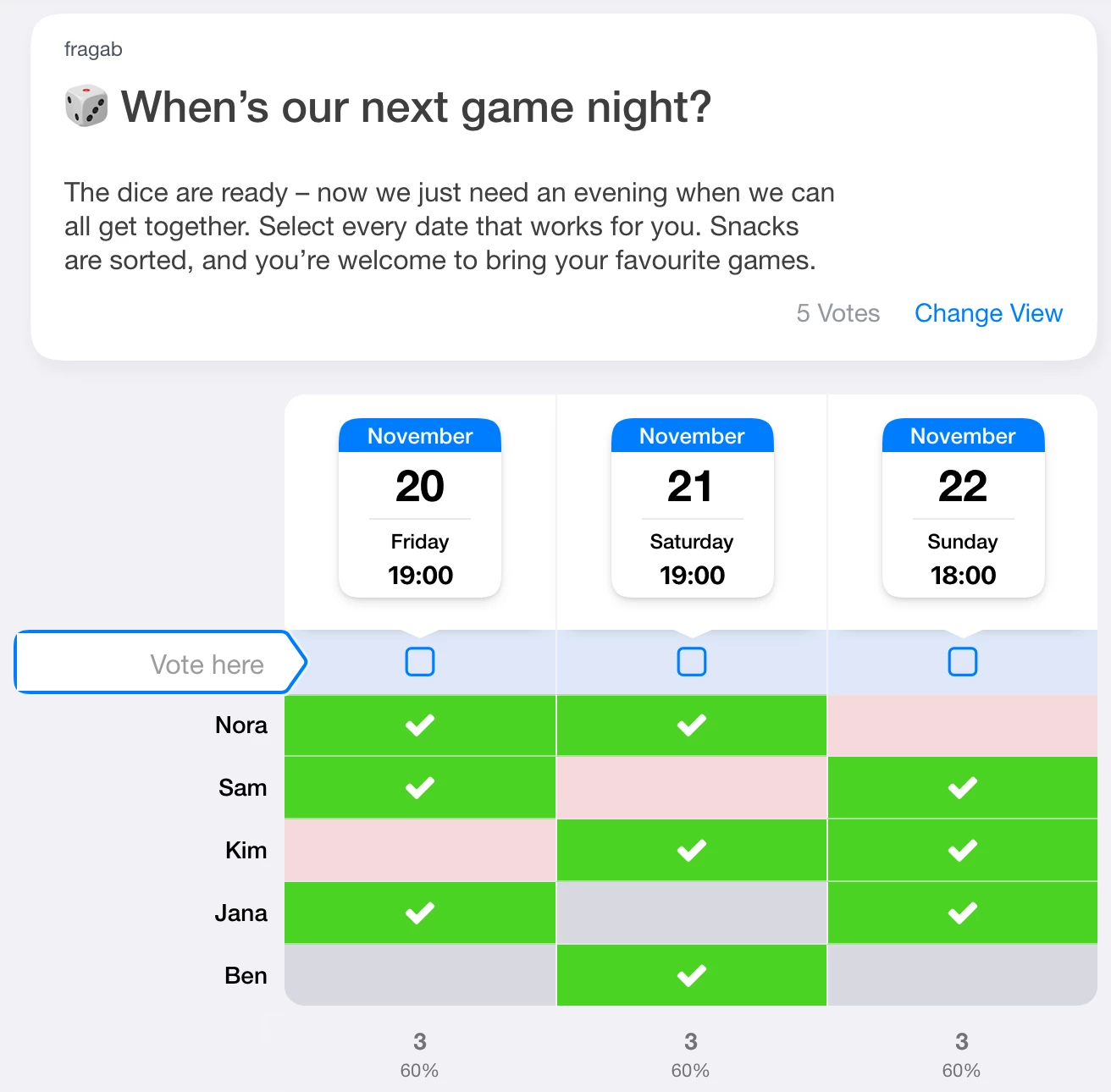
Try changing the selection. This example stays open and interactive, but your changes are not saved. Create your own poll for your group.
Which dates should you offer?
Suggest dates you can actually attend. Three or four well-chosen options are often easier to compare than a long list. If you are flexible, consider different weekdays or times.
Include the expected duration and a reply deadline. If replies are missing later, send your group a short reminder with the participant link.
Yes, No or Maybe?
A Yes means the date works. Depending on your settings, participants can also choose No or Maybe. Maybe is not a firm commitment: check before making a booking. Choose the available answers in the poll settings.
Some additional features depend on your package. Check the feature comparison for the available settings.
Read the replies and agree on a date
Compare who can attend each option and whether essential participants have replied. The date with the most Yes answers is a starting point; your group still makes the decision.
If no date suits everyone, ask for alternatives or add another proposal. Once you have agreed, tell the group which date you have chosen.
Is a scheduling poll free? Is an account needed?
You can create a basic scheduling poll for free. Participants do not need to sign in unless you require it in the settings. Additional features may require a paid package.
For more about choosing dates and using calendars, see find a date together.