- Blog
- Help
- About fragab
- Documentation
- Calendar iCal Feed
- Connect Calendar
- How to make a poll with URL parameters
- Create a poll
- Export polls
- Waiting list
- Share a poll via WhatsApp
- Troubleshooting
- Poll Types
Share and forward a poll via WhatsApp
Want to share a poll in a WhatsApp group or send the same link to several groups? Create the poll in fragab and send its participant link in the chat. Saved replies stay together in the same poll, even when you forward the link again later.
The group votes on fragab through the link. This guide covers sharing a fragab poll; it does not import or copy a poll created inside WhatsApp.
Share your poll in four steps
- Create the poll: enter your question and suitable options in fragab, then save it.
- Open the participant link: open your poll and tap Share or the sharing icon at the top.
- Choose WhatsApp: select WhatsApp in the sharing menu, then choose the chat or group.
- Check and send: add a reply deadline to your message if useful. Check that it contains the correct participant link before sending.
Copy the link or forward it to several groups
Use Copy beside the participant link in the sharing menu to paste it into WhatsApp yourself. This also works if the WhatsApp button does not respond on your device or you use WhatsApp Web.
Send the same link to all the groups involved. Everyone will open the same fragab poll. Creating a separate poll for each group would collect separate replies. You can forward an earlier link message again; check that the recipient group is appropriate.
Share only the participant link. Keep administration links and private draft previews out of the chat. A link can be passed on: membership of a WhatsApp group does not automatically restrict access to a fragab poll.
Live example: collect RSVPs for a party
Leo’s party invitation shows a simple attendance question for a family group. Everyone sees the same status through one link. See the Yes/No poll guide for other uses.
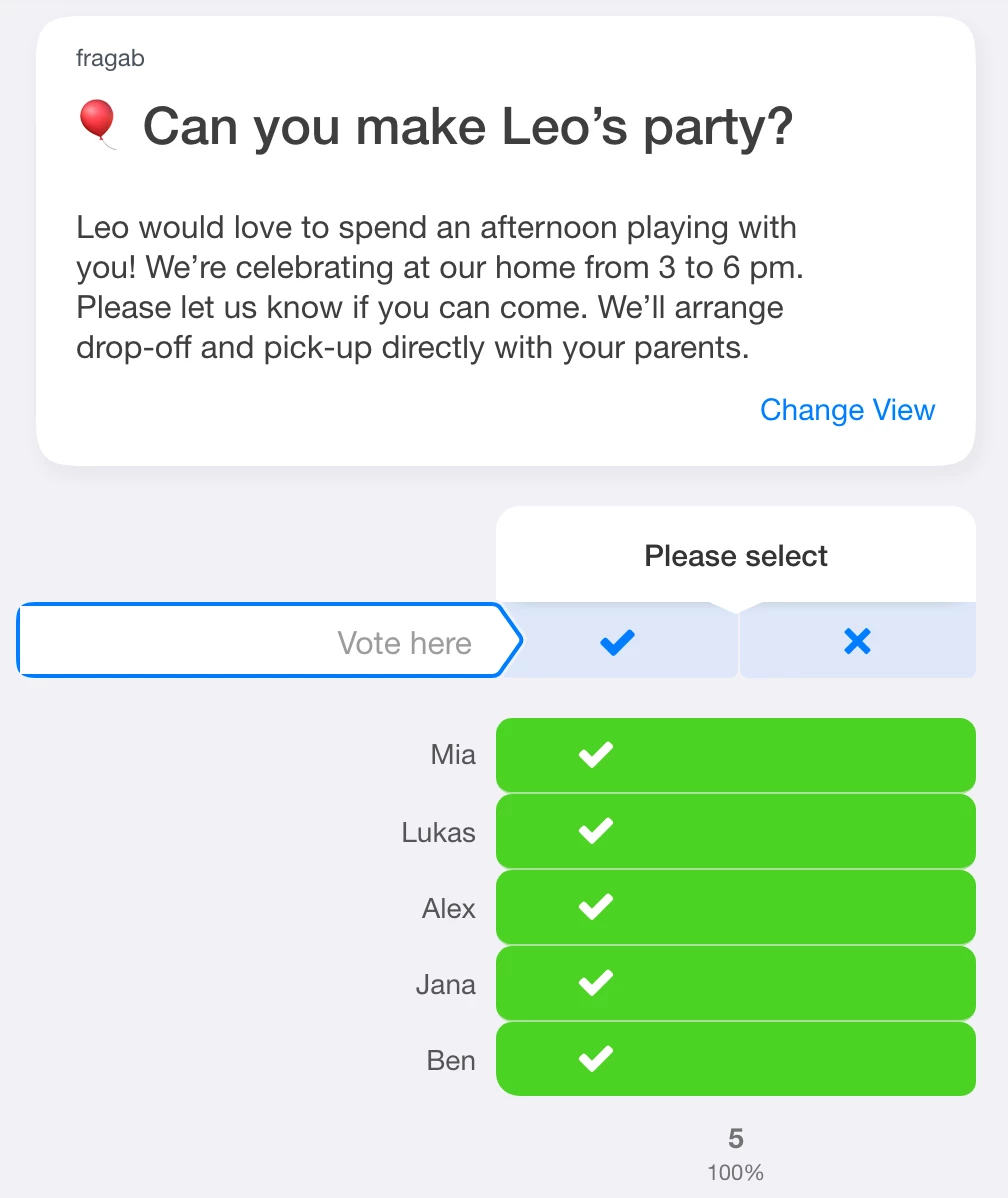
This example is open and interactive. Try selecting an answer; changes will not be saved. The five entries are prepared sample responses. Tap the preview image to enlarge the screenshot.
Voting: open the link, choose and save
Participants open the link, enter their name or the requested label, choose their answers and save their entry. A message in the WhatsApp chat is not automatically counted as a fragab vote. Whether participants must sign in depends on the poll’s settings.
Unlike the protected examples on this page, your own published poll saves responses. Remind the group to complete the save step.
Live example: hide names from other participants
When your group rates ideas, you can hide the names of other participants. In this example, answers and totals remain visible. People may select several ideas, so the percentages can add up to more than 100%.
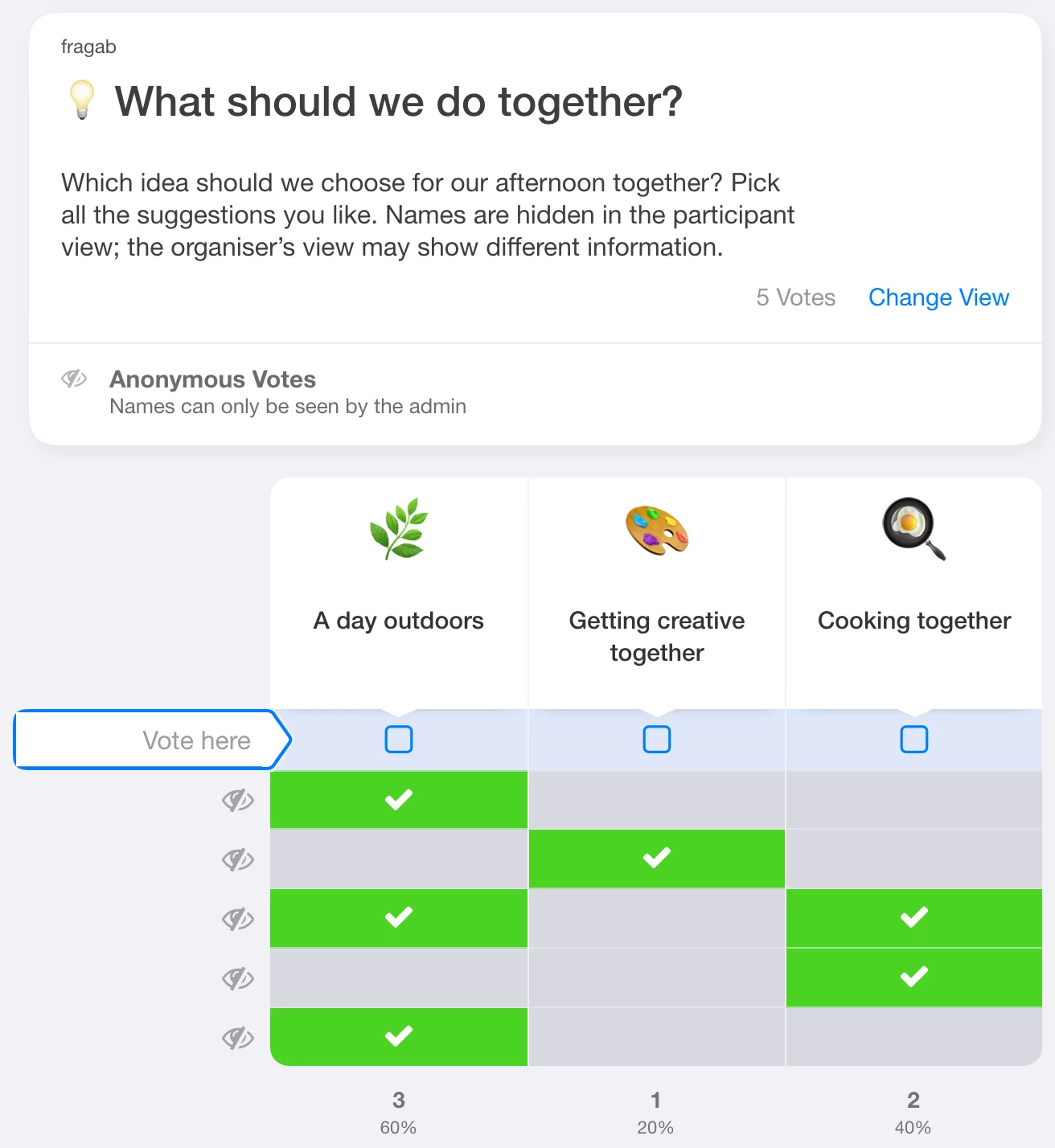
This example also contains five prepared entries and does not save your changes. Other participants cannot see the names; the creator and authorised administrators can still see them in this particular example. This is not a promise of complete anonymity.
Hiding names, votes and comments are separate settings in fragab. Sharing a link via WhatsApp does not activate them. The anonymous poll guide explains the differences, including the additional setting that applies secrecy to creators and administrators.
Copy results or link to the current status?
To share a snapshot as text, open Share and choose Copy result. Select the format and paste the copied text into WhatsApp. Before sending, check which names and answers it contains, especially for confidential polls.
The pasted text is a snapshot. Later votes do not update the chat message. Include the participant link if the group needs the current status or should continue voting.
If sharing does not work
- WhatsApp does not open: copy the participant link and paste it manually into the app or WhatsApp Web.
- Replies are missing: check that everyone uses the same poll link and has saved their entry.
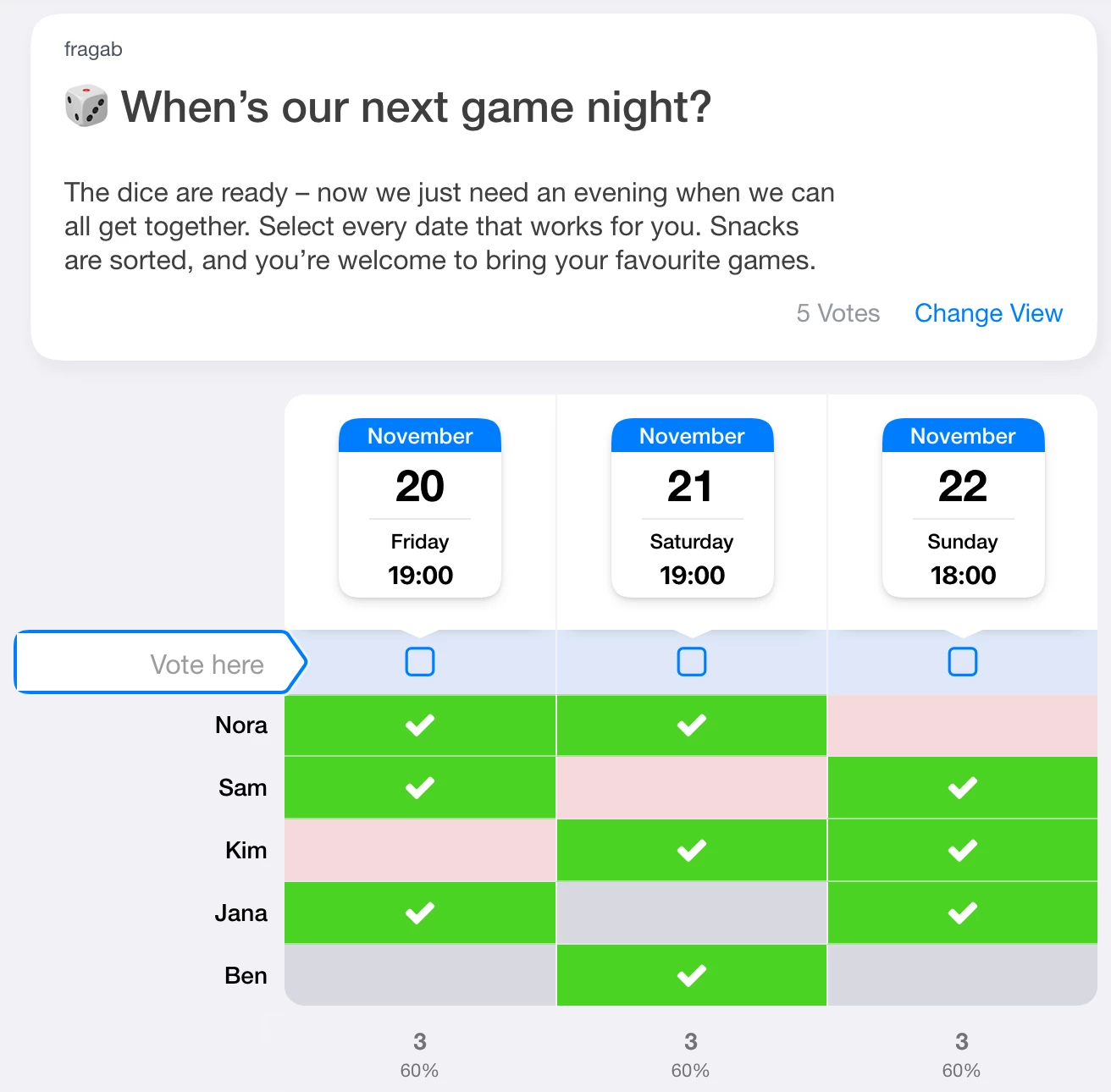
- You need to find a date: add date options. The scheduling guide explains how.
For attendance, dates and other group decisions, browse the poll examples.