- Blog
- Help
- About fragab
- Documentation
- Calendar iCal Feed
- Connect Calendar
- How to make a poll with URL parameters
- Create a poll
- Export polls
- Free text and custom lists
- Waiting list
- Share a poll via WhatsApp
- Troubleshooting
- Poll Types
Set up free text and custom lists
“What will you bring?” needs an input field. “Which workshop group would you like to join?” works with a custom dropdown list. You can add either to an option in your fragab poll.
You must be signed in to create your own lists. A normal text option that participants tick works differently.
Turn an option into an input field
- Give the option a label, such as “My contribution”.
- Open the option menu ☰ on its right.
- Choose “Free text field”. Participants can now enter an answer instead of ticking a box.
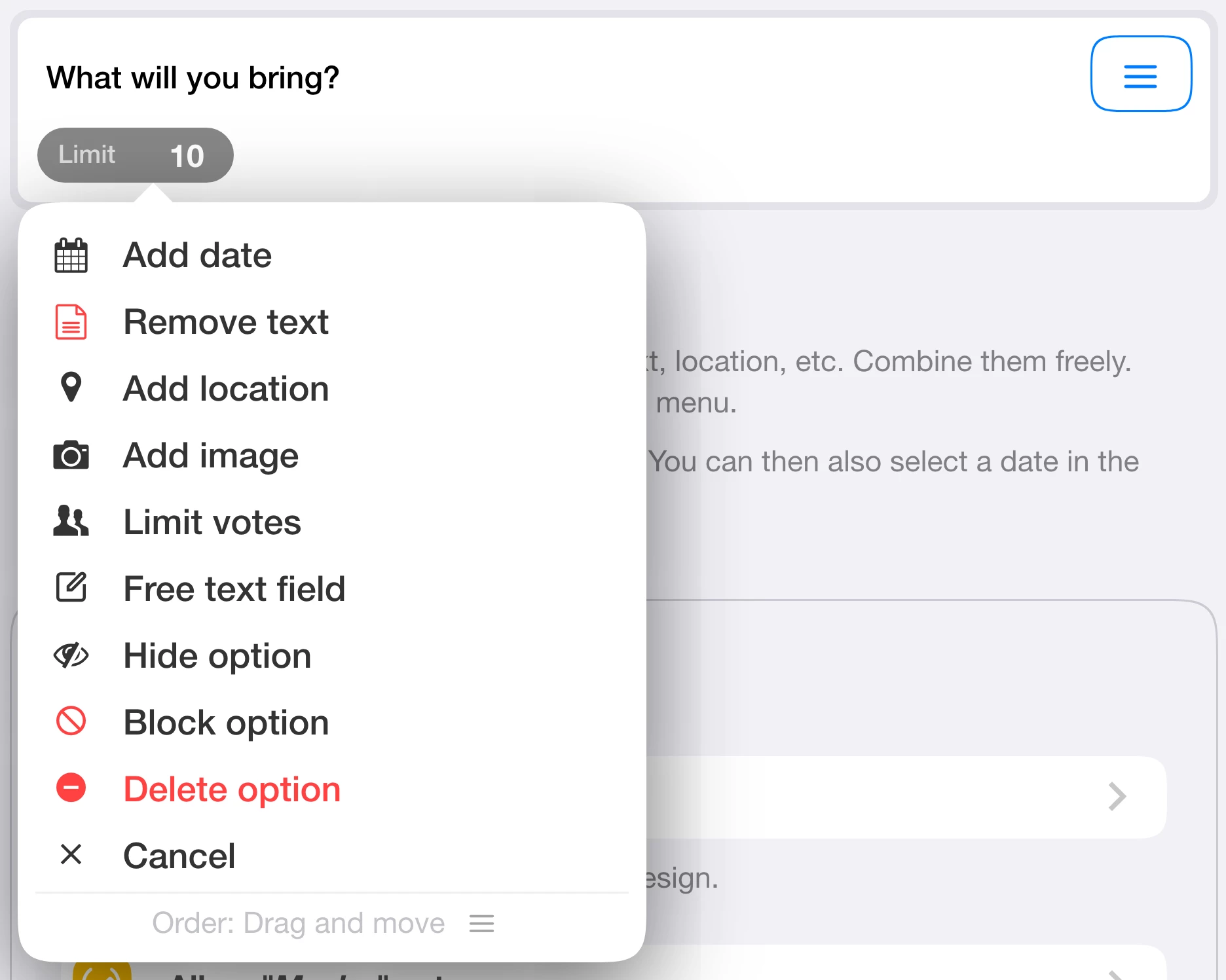
Choose an input type
Tap “Free text: Arbitrary” below the option. “Arbitrary” accepts a free-text answer. The other input types include Name, Email, Phone, Numeric, Keypad, Date & Time, Date, Time, URL and Color.
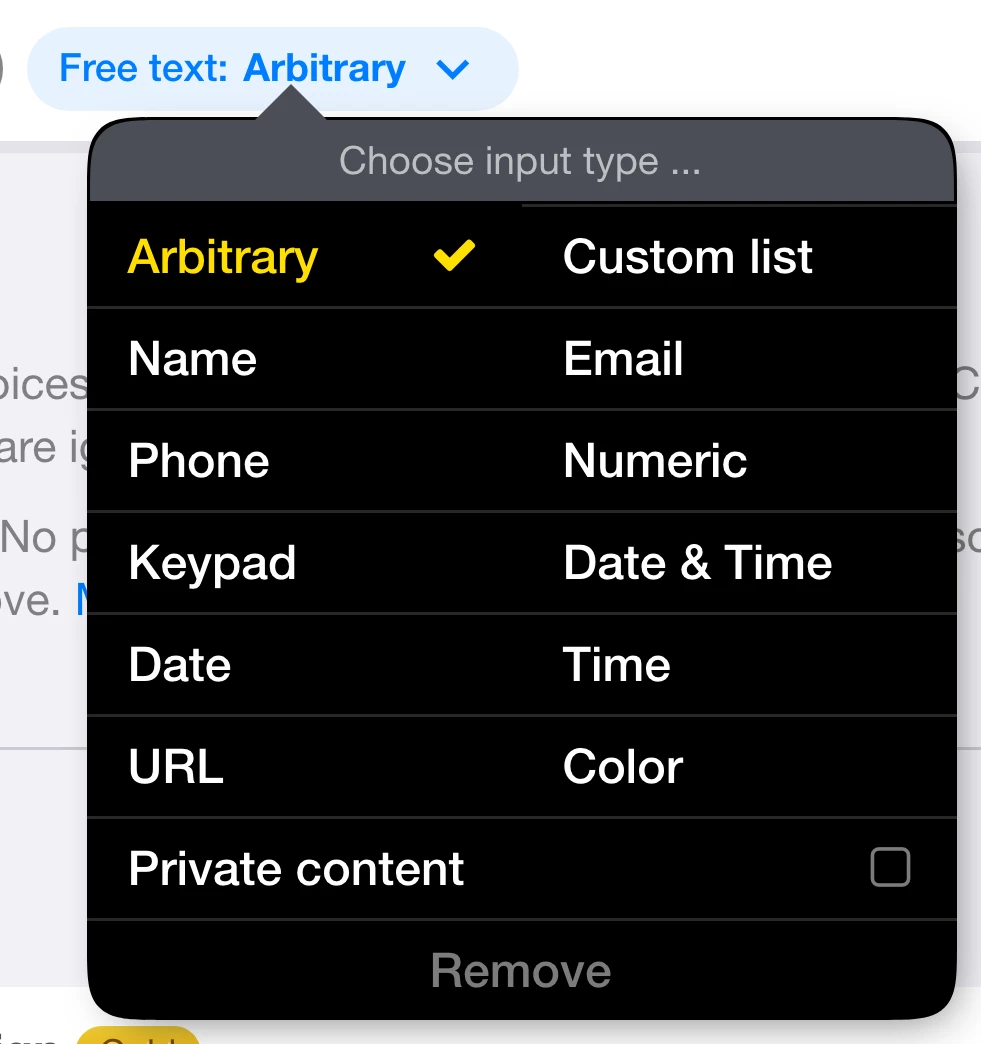
Choose the type that fits your question. A Date input field lets participants enter a date themselves. To vote on dates you suggest, add normal date options instead.
Create a custom list
- Choose “Custom list” in the input-type menu.
- Use an existing list or choose “Create”.
- Name the list and enter the available answers. For a list called “Workshop groups”, you could use Art, Building and Photography.
- Use “Add option” for more answers, then choose “Save”. Saving applies the new list to this option.
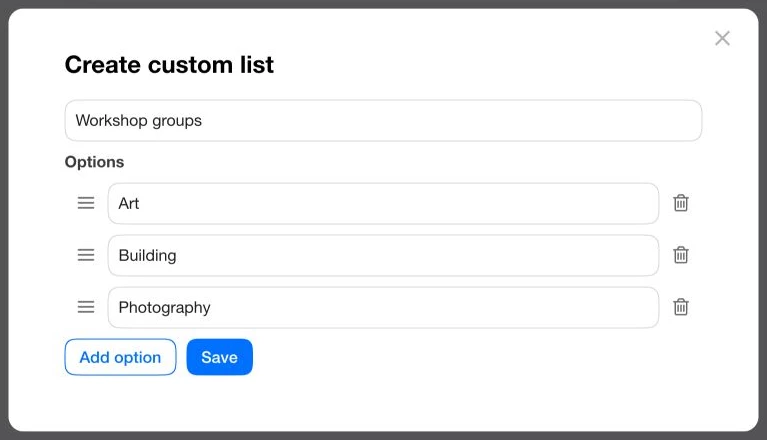
The list provides fixed answers for this input field. It does not create a separate voting column for each group or reserve places in those groups.
Live example: our creative workshop
Five fictional participants have confirmed attendance, entered what they’re bringing and chosen a workshop group. “I’m in” is an ordinary option; the other two columns are input fields.
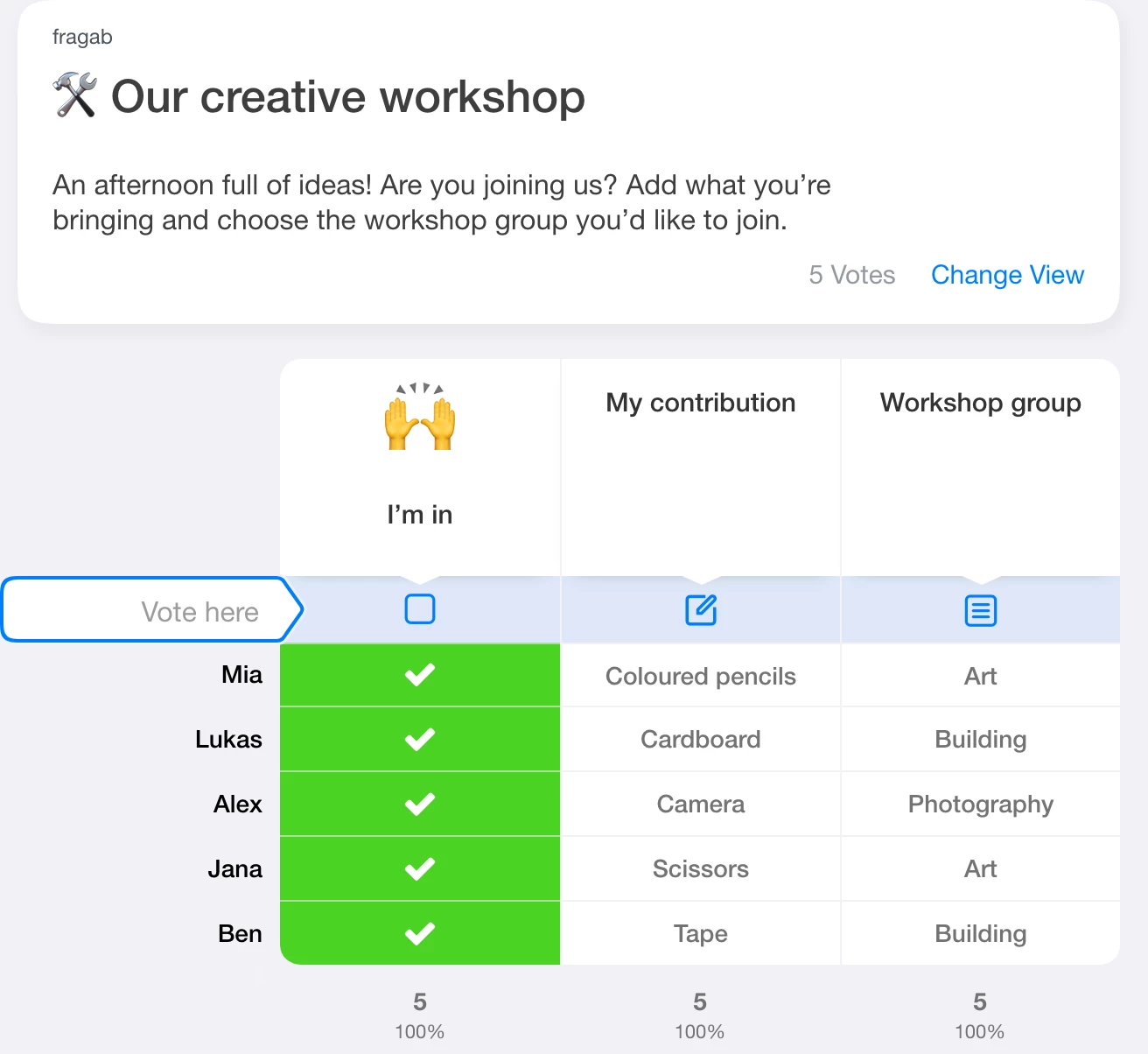
Tap the pencil icon for “My contribution” to open a text field, or the list icon for “Workshop group” to choose a group. In your own poll, save your entry afterwards. This live example is protected: you can try the fields, but your changes are not saved.
Who can see the answers?
Names and entries are visible in this example. “Private content” hides the content of one input field from other participants. This is separate from the settings for hidden names, votes and comments, including the additional restriction for creators and administrators.
For a workshop with limited places, add a separate attendance option with a limit. A waiting list can handle a full option. A custom dropdown list does not limit places.
For the rest of the setup, see the poll creation guide.