- Blog
- Help
- Poll Types
- Anonymous polls
- Create with AI
- Events & Parties
- Find a date
- Volunteer list
- Parent-teacher appointments
- Potluck list
- Choose a restaurant
- Save the date
- Signup list
- Text - Multiple Choice
- Training attendance
- Yes/No polls
Organise parent-teacher appointments with clear time slots
You need time between meetings, and not every parent can arrive early in the afternoon. Offer clear appointment times with fragab. First decide whether you are collecting availability or assigning individual slots: they are different workflows.
Availability or a confirmed slot?
In a date poll, several families can mark the same time as suitable. You then review the replies and confirm appointments. An availability reply alone is not a booking.
For each slot to be taken only once, enable “Close selected options”. Set “Max selectable answers” to one if each person should choose only one appointment; this selection limit is included in Gold and Platin. Test that occupied slots are blocked before sharing. Without an effective restriction, describe the list as appointment preferences and confirm the times yourself.
A waiting list can collect additional requests for occupied slots. Decide whether people move up automatically or whether you confirm them yourself.
Leave a buffer between meetings
Give the date and meeting location, and set a start and finish time for each option. For example:
- 14:00–14:15: meeting
- 14:20–14:35: meeting
- 14:40–14:55: meeting
The five-minute gaps are intentional. Leave longer breaks as gaps, not bookable options. Separate, clearly named lists for different teachers can be easier to follow than one large table. They do not automatically check for a family’s clashes across lists.
Create and check your appointment list
- Name the class or meeting group in the title.
- Add available times and explain how many should be selected.
- Test the selection rules before sending the link.
- Share the participant link with the intended parents.
- Confirm final appointments and explain how changes should be reported.
Live example: six short appointments
Five of the six slots are occupied and one is free. Each person can select at most one appointment; occupied slots are closed to further bookings. The screenshot focuses on the appointment table. Open the demo for the full description.
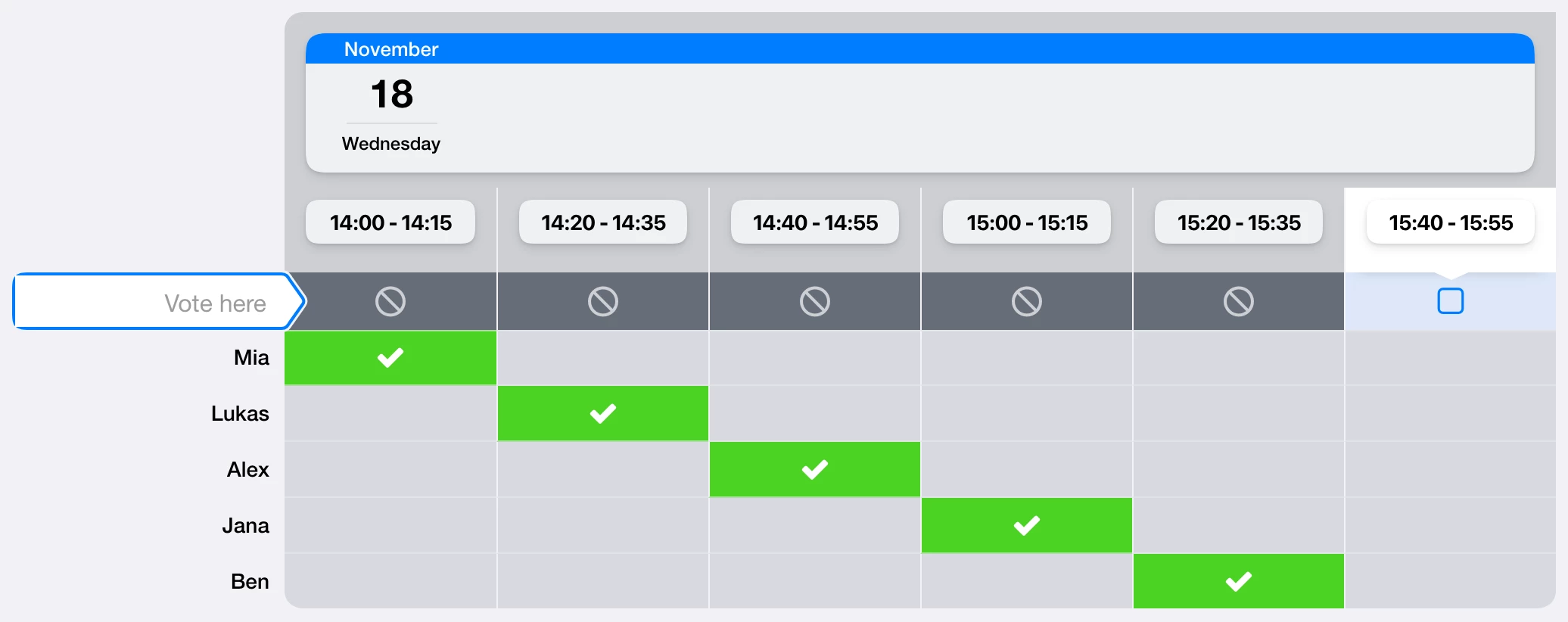
Try choosing the free slot. Your selection is not saved and the sample entries remain unchanged. Live dates move forward by whole weeks; the image shows the capture date’s view.
Keep personal information out of the list
Grades, meeting topics and personal concerns belong in the conversation, not the appointment list. Agree on an understandable name or identifier and decide who may see entries. Sharing a link with parents does not replace checking your school’s rules or visibility settings.
The creation guide explains the controls. To find a time for an event with all parents together, use a group date poll.
Private appointments and waiting lists
Use private signup settings if parents should not see other families’ names or selected appointments. The separate privacy settings are included in Gold and Platin. Administrators retain access unless the additional administrator privacy setting is enabled too.
You can combine this with a waiting list for occupied slots, which requires Platin. Check waiting status and position visibility separately: hiding waiting status alone does not hide names. The demo above has no waiting list.