- Blog
- Help
- Poll Types
- Anonymous polls
- Create with AI
- Events & Parties
- Find a date
- Volunteer list
- Parent-teacher appointments
- Potluck list
- Choose a restaurant
- Save the date
- Signup list
- Text - Multiple Choice
- Training attendance
- Yes/No polls
Create an anonymous poll: who can see names and answers?
Would you like to collect ideas without showing who chose what? Or should individual votes stay hidden as well? In fragab, you choose separately which information other participants can see.
What about organisers? By default, the creator and authorised administrators can still see the information hidden from participants. Enable “Also for you and administrators” to apply your chosen privacy settings to those roles too.
Hide names, vote results or comments
Open “Anonymous poll” in the creation form and choose the settings that match what you have promised your group.
| Setting | What other participants see |
|---|---|
| Hide voters names | Other people’s names are hidden. Their answers remain visible unless you also enable “Hide vote results”. |
| Hide vote results | Other people’s answers and the totals are hidden. Names remain visible unless you hide them separately. |
| Hide comments | Other participants’ comments are hidden. This is a separate setting, even when names are already hidden. |
You can combine these settings. People may still recognise their own entries, so check the participant view in a fresh private browser session without an existing vote.
Include the creator and administrators
First enable the privacy options you need, then select “Also for you and administrators”. It extends those options to the creator and all administrators.
- Names only: names are hidden from organisers too, while answers can remain visible.
- Votes only: organisers cannot see other participants’ answers or the results; names can remain visible.
- All three: other people’s names, votes and comments are hidden from organisers as well.
Once saved, the additional switch stays locked while any privacy option is active. This controls visibility; it does not delete the data. Disabling the corresponding privacy settings can make the information visible again. Do not describe it to your group as irreversible anonymisation.
Answering a poll without signing in is a different feature and does not automatically make the answers anonymous.
Set up and check your poll
- Add your question and choices. Create a poll and explain which information the group will be able to see.
- Choose the privacy options. Hide names, votes and comments separately. Include the creator and administrators if needed.
- Check the other information. Descriptions, comments or extra input fields can identify someone even when their name is hidden. Ask only for what you need.
- Check both views. Open the participant link in a fresh private browser session and compare it with your organiser view.
- Share the participant link. Keep the management link to yourself.
Example 1: hidden names, visible answers
What shall we do together: go outdoors, get creative or cook? Five people have provided sample answers. Their names are replaced by a symbol, while their choices and totals remain visible. The notice above the table explains that administrators can still see the names in this example.
Try the poll with hidden names
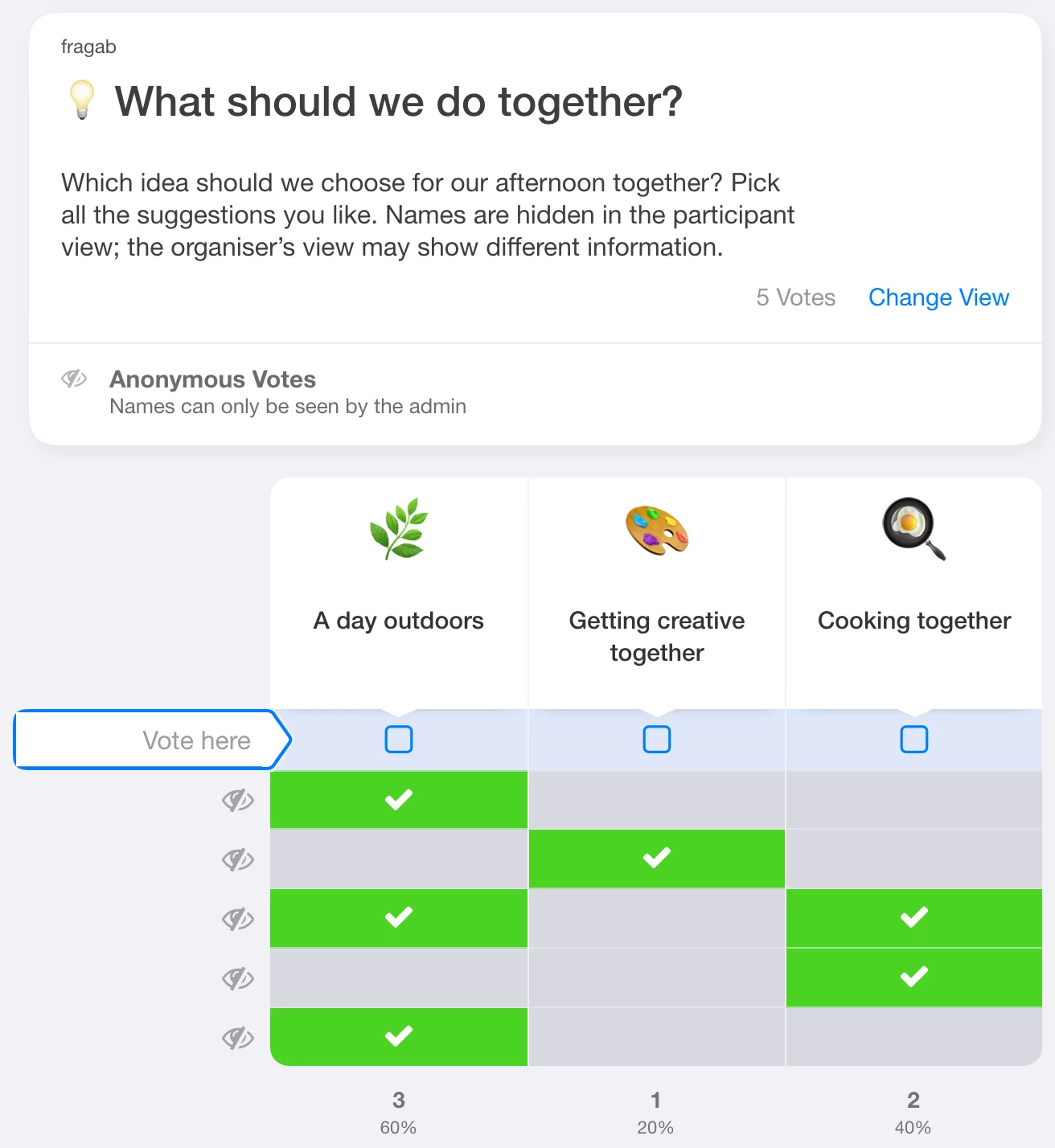
Multiple choices are allowed, so the percentages do not need to add up to 100. This example is open and interactive, but changes are not saved.
Example 2: visible names, hidden votes
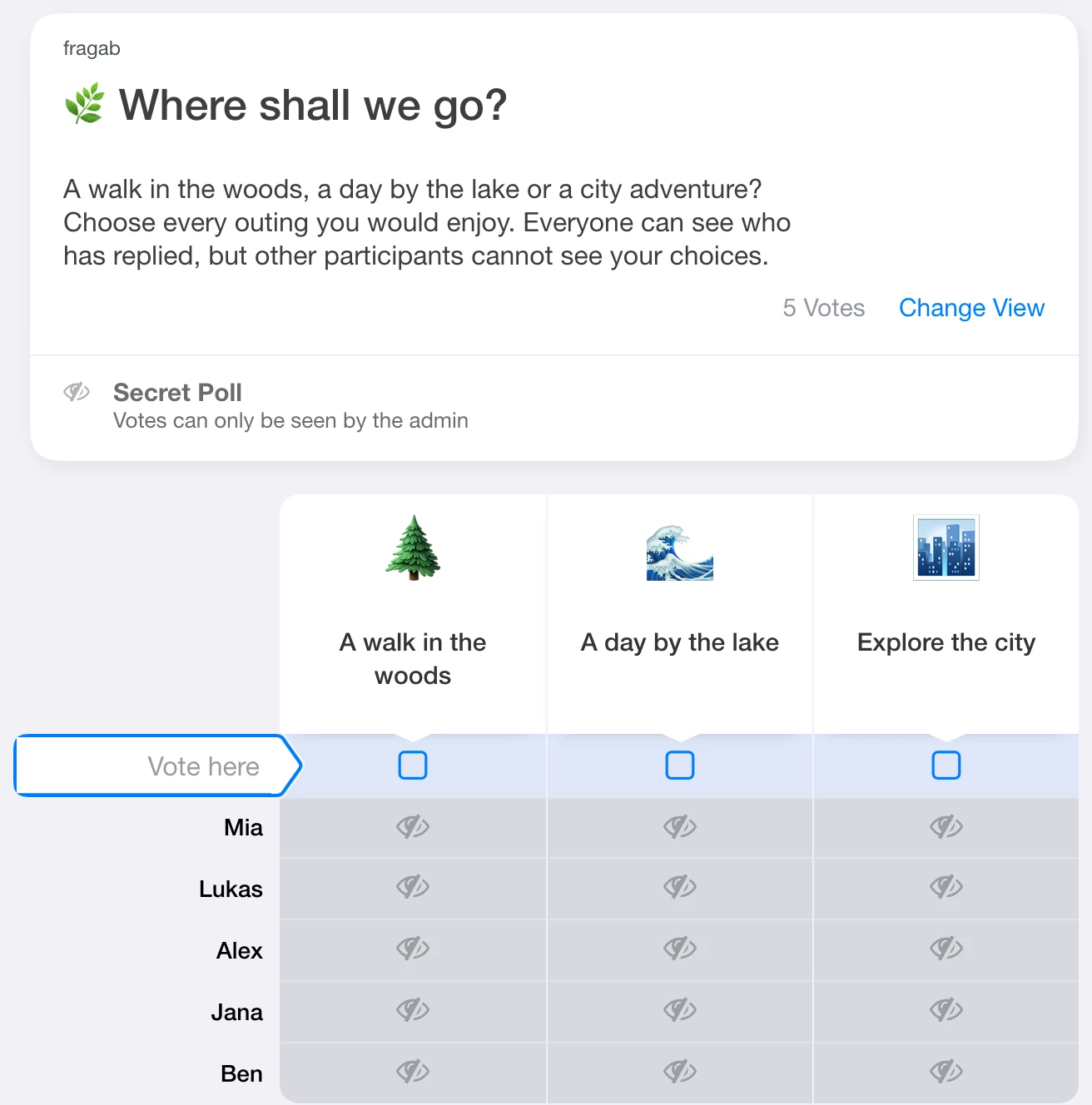
Mia, Lukas, Alex, Jana and Ben appear by name, so you can see who has replied. All answer cells are masked and the totals are hidden. “Hide vote results” is enabled; the administrator option is off, so organisers can still see the stored answers.
Try the poll with hidden votes
Example 3: hidden from organisers too
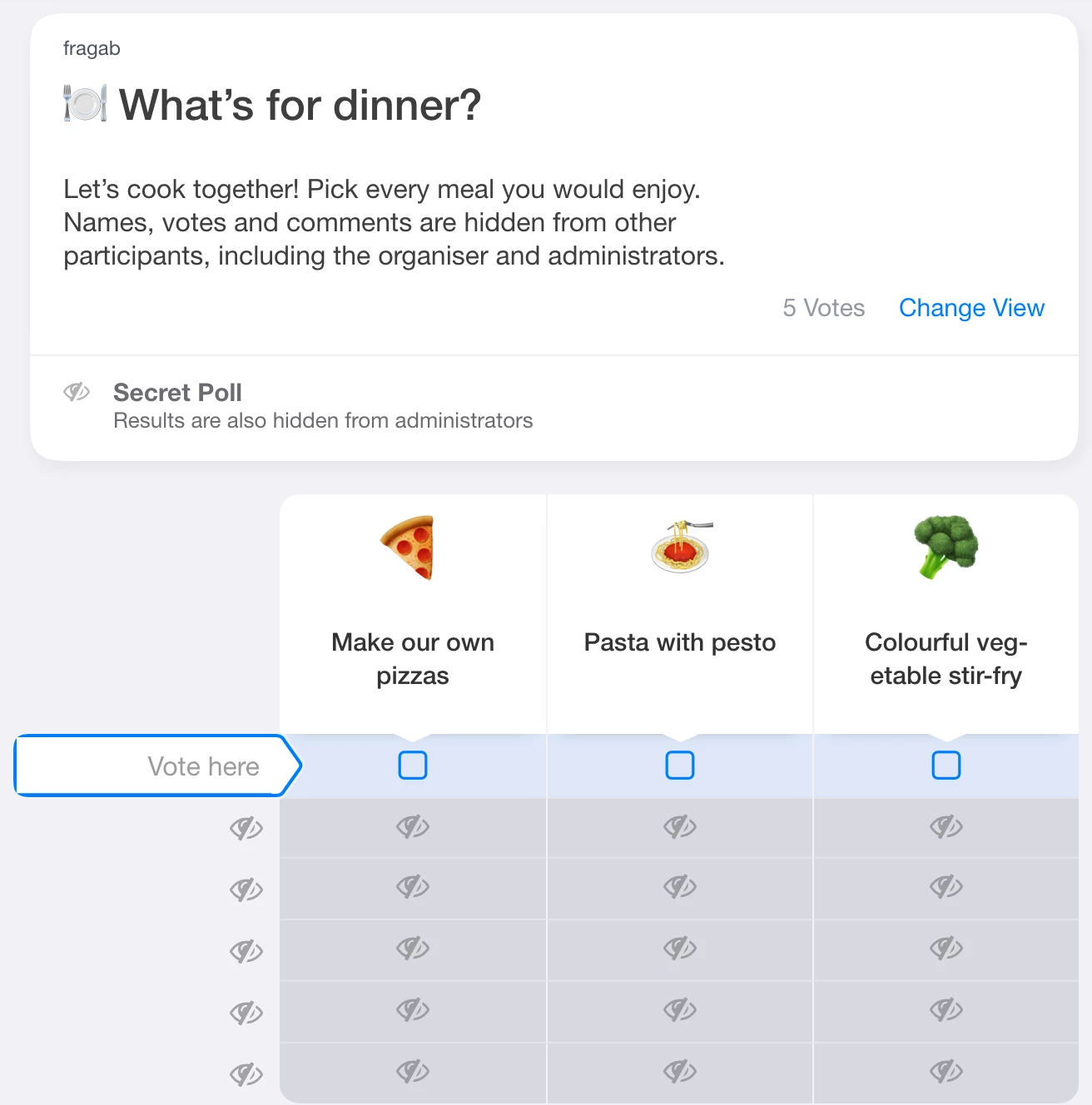
What shall we cook? This poll hides names, votes and comments and also enables “Also for you and administrators”. Visitors and organisers see the three suggestions and five entries, but not the names, individual answers or results. Comments would also be hidden from other people; no sample comments have been added.
Try the poll with organiser privacy
All three examples let you try a selection without saving it. Their prepared entries remain unchanged.
Private sign-ups and waiting lists
You can combine these privacy settings with a waiting list for a fully booked course or appointment. Check waiting-status and position visibility separately: hiding the waiting status alone does not make the entries anonymous.
Share an anonymous poll in WhatsApp
Create your poll in fragab, check the privacy settings and paste its participant link into your WhatsApp group. People open the fragab poll in their browser. Sharing the link does not change which names or answers are visible.
Tell the group who can see what before voting starts. Only change the privacy settings later in line with that explanation. For a scheduling question, see finding a date together; for the general setup, use the poll creation guide.